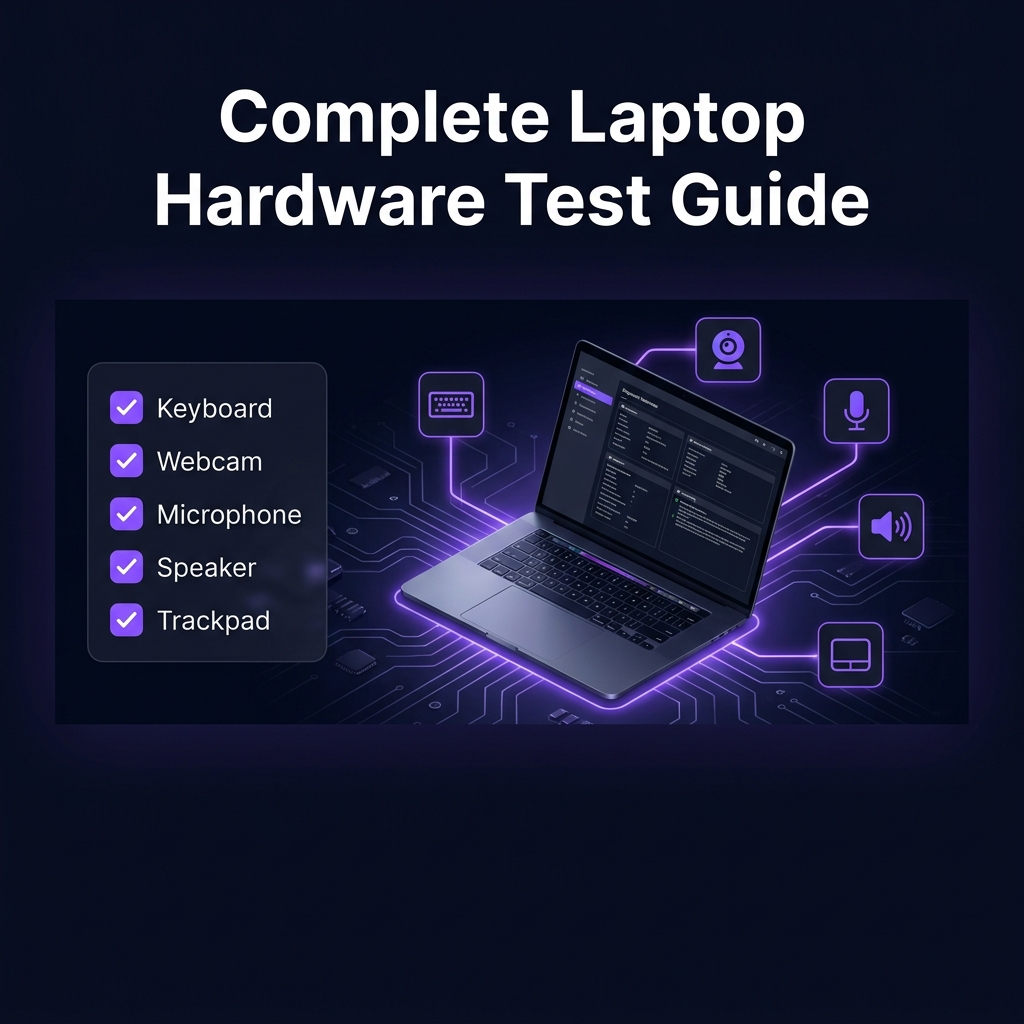
The Complete Laptop Hardware Test Guide — Test Everything in Minutes
⚡ Quick Answer
You can test all major laptop components directly in your browser — keyboard, webcam, microphone, speakers, and trackpad — using free online tools. No downloads needed. Run each test in sequence, note any that fail, and follow the targeted fix guides. A full hardware checkup takes less than 7 minutes.
Why Run a Full Hardware Test?
| Situation | Why Test |
|---|---|
| Buying a used/refurbished laptop | Verify all components work before you pay |
| Before selling your laptop | Know what works, be honest with buyers |
| After a software update or reinstall | Confirm everything survived the update |
| When something "feels off" | Isolate the exact problem quickly |
| Pre-interview / pre-exam | Confirm your tools work before you need them |
Test 1: Keyboard
Press every key — function keys, number row, letters, spacebar, arrow keys, modifiers, and Enter. Watch the on-screen keyboard light up as each key is detected.
- All keys light up → Keyboard fully functional ✅
- 1–2 keys missing → Debris or worn contact. Try compressed air first.
- Entire row missing → Possible ribbon cable issue (hardware)
- Nothing registers → Driver issue or keyboard disabled in settings
Test 2: Webcam
Allow browser camera access and check the live preview loads. Image clear and smooth means the camera hardware is fine. Black screen or "no camera found" indicates a driver or privacy permissions issue.
Test Webcam →Test 3: Microphone
Allow browser microphone access and speak. Watch the volume meter. If it moves, the mic is working. If it stays flat, check OS privacy settings and the selected input device.
Test Microphone →Test 4: Sound / Speakers
Ensure laptop volume is up, click play, and listen. Test left and right channels separately. If you hear clear audio from both sides, speakers are working. No sound suggests an output device or driver issue.
Test Sound →Test 5: Trackpad
Move your finger slowly across the full trackpad surface and watch the trail. Smooth and continuous is good. Tap in different zones and try two-finger scrolling. No response at all suggests the trackpad is disabled or has a driver issue.
Test Trackpad →5-Minute Checkup
✅ Full Laptop Test Summary
Five tests. Seven minutes. Full peace of mind.
Start Full Test →Full Test Summary Table
| Component | Tool | Time | Common Fix |
|---|---|---|---|
| ⌨ Keyboard | Keyboard Tester | ~2 min | Update driver, clean keys |
| 📷 Webcam | Webcam Test | ~1 min | Privacy settings, driver update |
| 🎤 Microphone | Mic Test | ~1 min | Privacy settings, input device |
| 🔊 Sound | Sound Test | ~1 min | Output device selection, driver |
| 🖰 Trackpad | Trackpad Test | ~2 min | Enable in settings, clean surface |
| Total | ~7 min |
👤 Real-Life Scenario
Before selling his laptop, Marcus ran the full hardware test. Keyboard: all keys pass. Webcam: working. Sound: working. Trackpad: two zones in the bottom-left not responding. He listed the laptop accurately, priced it accordingly, and sold it honestly. The buyer knew exactly what they were getting — and Marcus avoided any disputes.