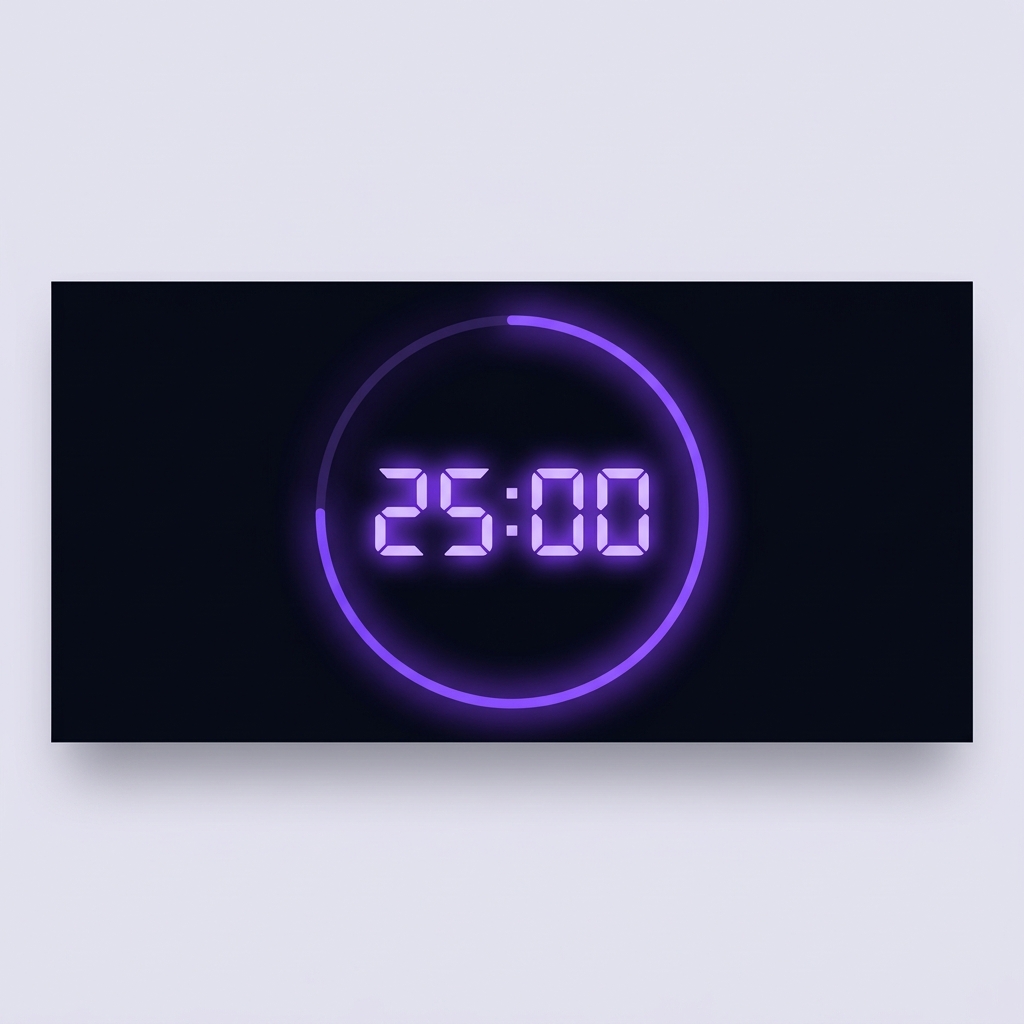
The Best Free Online Timer Tool — No Downloads, No Fuss
⚡ Quick Answer
An online timer tool runs directly in your browser — no downloads, no account, no distractions. Open the page, set your time, click start, and focus. Works as a countdown timer, stopwatch, and is ideal for studying, cooking, working out, or managing meetings.
Sometimes You Just Need a Timer That Works
Search for a timer online and you're often hit with cluttered, ad-heavy pages that take forever to load. The TestMyPC online timer is different. It opens instantly, it's clean, it works, and it gets out of your way.
How to Use the Online Timer — Step by Step
- Open the Timer — No login. No setup. Just open and go.
- Choose Your Mode — Countdown timer (count down to zero) or stopwatch (count up from zero).
- Set Your Time — Enter hours, minutes, and seconds, or use quick-set buttons for common intervals.
- Start the Timer — Click Start. Pause and resume at any time. The timer continues even if you switch tabs.
- The Alert — When the timer reaches zero, an audible alert sounds. Make sure your laptop volume is turned up.
Perfect Use Cases
📚 Students — Pomodoro Study Sessions
Work for 25 minutes, take a 5-minute break. Set the timer to 25 minutes, close all other tabs, and focus. When it goes off, take your break — then start again. Repeat four times then take a longer break.
💼 Remote Workers — Meeting Management
Running a 30-minute standup? Set the timer before you start. It keeps discussions on track and prevents meetings from overrunning.
🏋 Fitness & Workouts
Time your rest periods between sets, your workout rounds, or your plank holds. A simple online timer is all you need.
🍳 Cooking
Set a countdown for anything on the hob or in the oven. The audible alert means you don't have to keep watching the clock.
Tips for Getting the Most Out of an Online Timer
Use Full-Screen Mode
Press F11 (Windows) or Control + Command + F (Mac) to go full screen. The timer becomes very visible and easy to glance at without breaking focus.
Enable Do Not Disturb
Before starting a study session, enable Do Not Disturb — Windows: click the notification bell icon → toggle DND. Mac: Control Centre → Focus → Do Not Disturb.
| Feature | Online Timer | Phone Timer |
|---|---|---|
| No phone distraction | ✓ Stays on screen | ✗ Risk of picking up phone |
| Visible alongside work | ✓ Always visible | ✗ Separate device |
| No install needed | ✓ Browser only | ✓ Built-in |
| Works on restricted laptops | ✓ Just a browser | ✗ Need phone nearby |